Kobo Libra 2 Screen Frozen: Diagnosis and Solution Guide
Validated by Luca Chia, Certified Electronic Technician
Revision of 07/05/2026
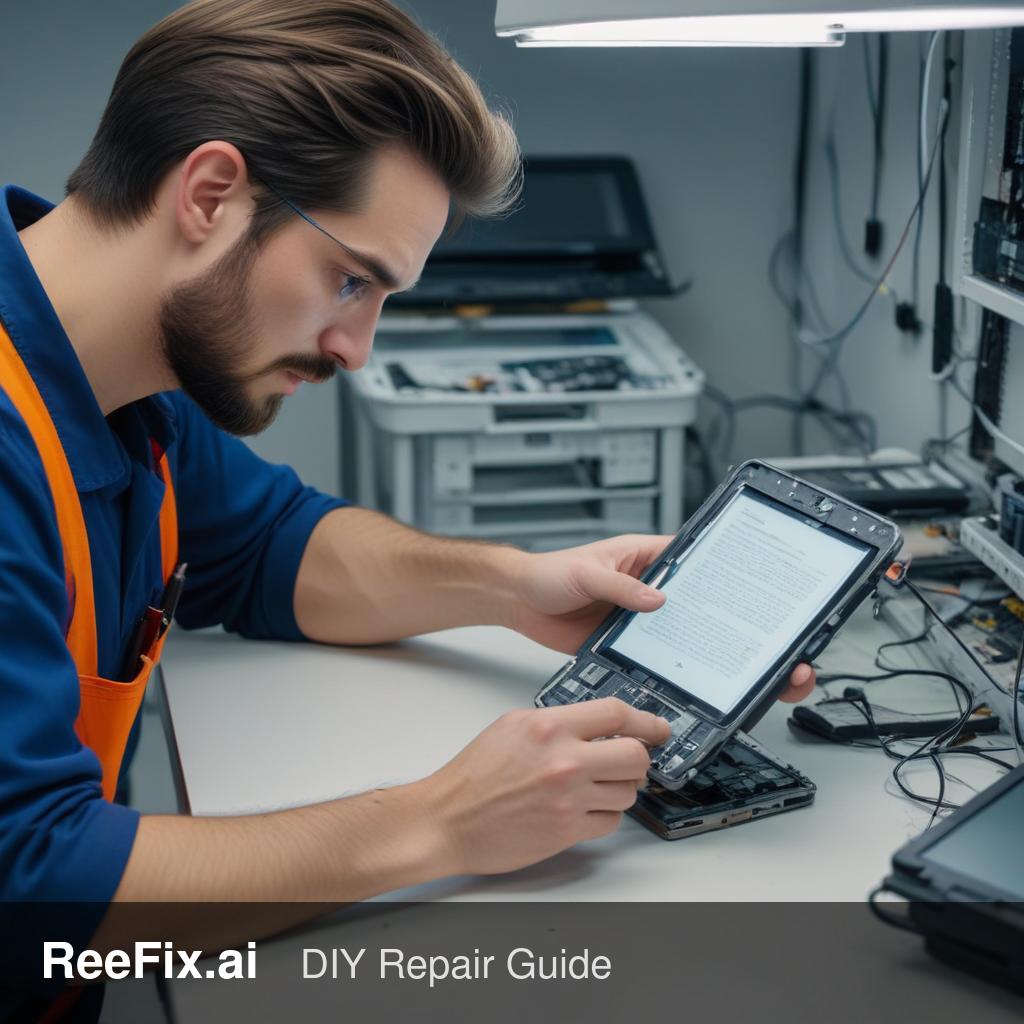
⚠️ WARNING / FIRE HAZARD. This device contains lithium batteries. Improper puncturing or bending during disassembly can cause explosions or flames. The intervention requires precision and specialized technician assistance is recommended. ReeFix provides this diagnosis EXCLUSIVELY for educational and informational purposes.
TYPICAL ERROR
Your Kobo Libra 2 has a frozen screen, is unresponsive to touch, and showed an "error" after a software update. This scenario highly likely (60-75%) points to firmware corruption or an internal memory (NAND flash) issue exposed by the update. Less likely (15-25%) is a direct hardware failure of the E Ink display or touch digitizer, although the update might have highlighted a pre-existing weakness. A power management (PMIC) issue or loose internal connections is the least probable cause (5-10%) in this context.
Key signs:
- Static screen: The E Ink display maintains the last image or an error screen.
- Unresponsive touch: Unable to interact with the device.
- Triggering event: Immediately after a software update. This is the strongest indicator of a software or memory-related problem.
- Generic "error": Without a specific message, it indicates a critical system failure.
Why it happens: During an update, the operating system and critical files are rewritten. If the process is interrupted, the update file is corrupted, or the NAND memory has damaged sectors, the firmware may be incomplete or unreadable, preventing the Kobo from booting correctly and managing the display and touch.
HOW TO FIX
Quick checks (DIY):
- Forced Reset: Press and hold the power button for at least 15-20 seconds. This attempts to force a complete system restart, which can resolve temporary freezes. Release the button and wait for the device to try to restart.
- Recharge: Ensure the device is charged. Connect the Kobo to a charger for at least 30 minutes, then try the forced reset again. Sometimes, a low battery can prevent a proper boot.
If the reset doesn't work (Consult a technician): The cause is almost certainly severe software or hardware. A technician can attempt to:
- Firmware re-flash: Using specific tools, attempt to reinstall the firmware from scratch. This is the next most logical step to rule out software corruption.
- NAND Flash Diagnosis: Check the integrity of the internal memory for damaged blocks. If the NAND is faulty, any update will fail, and the device will remain unstable.
- Connection check: Inspect the flexible flat cables (FFC) of the display and digitizer on the motherboard. Although less likely, a technician can rule out loose or damaged connections.
- Component test: If possible, test the Kobo Libra 2 E Ink Display and the Kobo Libra 2 Digitizer individually.
Tools needed for the technician:
- Precision Screwdriver Set
- Plastic Opening Tools
- Anti-static Wrist Strap (to prevent ESD damage)
- Kobo-specific recovery software and cables (available only to service centers or specialized technicians).
Output for the technician: "The Kobo Libra 2 experienced a critical freeze after a firmware update. E Ink screen frozen and touch unresponsive. An unspecified error was displayed. Forced reset did not resolve. Firmware corruption, NAND flash failure, or display/digitizer controller failure is suspected. Request firmware/NAND integrity check and, if necessary, I/O component testing."
FINAL CHECK
After an intervention (whether a successful reset or a technical repair), the Kobo Libra 2 should restart normally, show the home screen or the last book read, and the touch screen should respond fluidly to input. A technician would verify full display functionality (page turning, refresh) and touch across the entire surface, as well as checking overall system stability.
If the forced reset does not resolve, the probability of a serious software or hardware problem is high. Consult a technician to attempt a firmware re-flash; otherwise, consider replacing the device if the cost of hardware repair exceeds its value.
This diagnostic report is generated using an artificial intelligence system (RAG) based on the aggregation of online data. The moderation by Luca Chia (Electronic Expert) validates its logical coherence and technical plausibility regarding the described symptoms, confirming the correctness of the AI's diagnostic reasoning, without however constituting an absolute guarantee of resolution for individual cases.