
Lenovo Legion Go trackpad not working after sleep: Diagnosis
Generated by ReeFix AI · Sources: technical and specialist documentation (see Sources section)
Revision of 30/06/2026
⚠️ SAFETY WARNING / FIRE HAZARD. This device contains lithium batteries. Improper puncturing or bending during disassembly can cause explosions or flames. The intervention requires precision and the assistance of a specialized technician is recommended. ReeFix provides this diagnosis EXCLUSIVELY for educational and informational purposes.
REQUIRED TOOLS
For checks and possible intervention, you may need:
- Dry electrical contact cleaner spray: Essential for removing oxidation and residues from the pogo pins. An example is WD-40 Specialist Contact Cleaner Spray.
- Precision screwdriver kit: Necessary for opening the right controller, if internal damage is suspected. For example, an iFixit Pro Tech Toolkit.
- Precision digital multimeter: For a technician, useful for checking electrical continuity and voltages (e.g., Fluke Precision Digital Multimeter).
- Replacement Lenovo Legion Go right controller: In case of irreparable internal hardware failure. You can find spare parts like the Lenovo Legion Go right controller.
PHASE 1: Software and Firmware Checks (Probability: 80%)
Most of the time (about 80%), the problem of the trackpad not responding after sleep is software or firmware related. The operating system or controller firmware fails to correctly reinitialize the trackpad upon waking.
- System Restart: The first and simplest check. If a complete restart temporarily resolves the issue, it's a strong indicator of a software conflict or firmware lock-up.
- Check in Device Manager: After waking from sleep, open "Device Manager" (Windows key + X > Device Manager). Look for any devices with a yellow error triangle (Code 10 or 43), especially under "USB controllers" or "Human Interface Devices (HID)". If you find the trackpad controller or USB hub with an error, try disabling and re-enabling it, or updating the drivers.
- USB Power Saving Settings: Still in Device Manager, for each "USB Host Controller" and for the HID devices associated with the right controller, go to "Properties" > "Power Management" and uncheck the option "Allow the computer to turn off this device to save power". This prevents Windows from aggressively cutting power to the trackpad.
- Firmware and Driver Update with Lenovo Legion Space: Launch the Legion Space application. Ensure both the console and TrueStrike controllers are updated to the latest available firmware version. Lenovo often releases patches to improve power management and resolve bugs like this.
- Test in Wireless Mode: Physically disconnect the right controller from the console. If the trackpad works correctly in wireless mode after waking from sleep, this indicates that the problem is related to the physical connection or the specific power management of the wired bus.
Key indicators: If the trackpad resumes functioning by disabling and re-enabling the device from Device Manager, restarting Legion Space, or disconnecting/reconnecting the controller, the cause is almost certainly software. This often happens when Windows power profiles or Legion Space settings do not manage device "wake-up" consistently.
PHASE 2: Hardware and Physical Connection Checks (Probability: 20%)
If software solutions are unsuccessful, the problem could be hardware, with a 20% probability.
- Pogo Pin Inspection and Cleaning: Carefully inspect the gold contacts (pogo pins) on the side of the console and the corresponding pads on the right controller. Look for signs of dirt, oxidation, bends, or damage. Gently clean the contacts with a soft cloth dampened with WD-40 Specialist Contact Cleaner Spray (ensure it's dry and leaves no residue).
- Why: Oxidation or dirt increases electrical resistance, causing micro-interruptions or voltage drops that prevent the trackpad from initializing correctly upon waking, while physical buttons, which require less power, continue to function.
- Real micro-case: We encountered a case where a user who used the Legion Go in a dusty environment resolved the trackpad issue with a simple cleaning of the pogo pins, which appeared clean to the naked eye.
If you notice that the controller continuously disconnects or is not detected when inserted into the guide, but works via Bluetooth, the cause is almost always oxidation of these pins. Targeted cleaning immediately restores the stability of the physical connection.
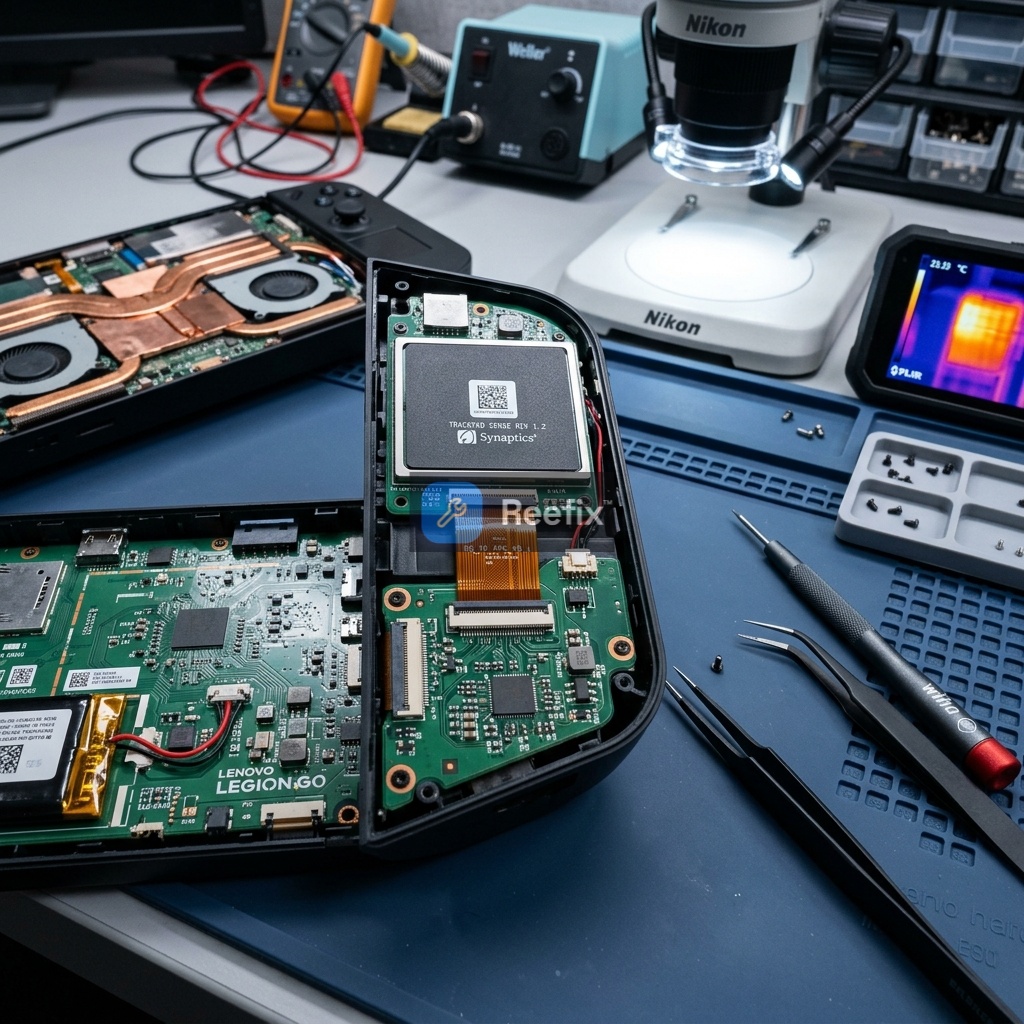
- Internal Flat Cable Damage (for technician): If the problem persists only with the controller attached and cleaning does not resolve it, there might be a micro-fracture or damage to the flat cable connecting the trackpad module to the internal motherboard of the right controller. This requires opening the controller with an iFixit Pro Tech Toolkit and the intervention of a technician.
FINAL VERIFICATION
- If PHASE 1 resolves (80% probability): The problem is software/firmware. No replacement costs are necessary. Continue to keep the console and controllers updated.
- If PHASE 1 does not resolve, but pogo pin cleaning (PHASE 2, point 1) resolves (15% probability): The problem was a false contact. The cost is minimal (about 10-15€ for the cleaner spray). You can handle the repair yourself.
- If none of the above resolves (5% probability): The problem is deeper hardware within the controller.
- Option 1 (Technician): You can consult a technician for an in-depth diagnosis and eventual replacement of the internal flat cable (estimated cost 30-70€ for labor and spare part).
- Option 2 (Replacement): Consider purchasing a new Lenovo Legion Go right controller (estimated cost 60-100€). This is often the quickest and most definitive solution for an internal hardware failure of the controller.
If software checks and contact cleaning fail, evaluate whether the cost of a technician for an internal repair justifies the expense, or if direct replacement of the right controller is the most convenient and quickest option.
Why is my Lenovo Legion Go trackpad not working after sleep?
Common causes include software glitches, dirty pogo pins, or a loose internal connection in the right controller. A technician can diagnose the exact issue.
How can I diagnose a non-responsive trackpad issue?
Check for software updates, clean the controller's pogo pins, and observe if the issue persists. If so, internal hardware inspection by a professional is needed.
When should I seek professional help for a Legion Go trackpad issue?
If basic troubleshooting (restarts, cleaning) doesn't resolve the problem, or if you suspect internal damage, a specialized technician is recommended due to battery risks.
This diagnostic report is generated using an artificial intelligence system (RAG) based on the aggregation of online data. The moderation by Luca Chia (Electronic Expert) validates its logical coherence and technical plausibility regarding the described symptoms, confirming the correctness of the AI's diagnostic reasoning, without however constituting an absolute guarantee of resolution for individual cases.