
Ray-Ban Wayfarer 2: Bluetooth Disconnections? Here's the Solution!
Generated by ReeFix AI · Sources: technical and specialist documentation (see Sources section)
Revision of 07/07/2026
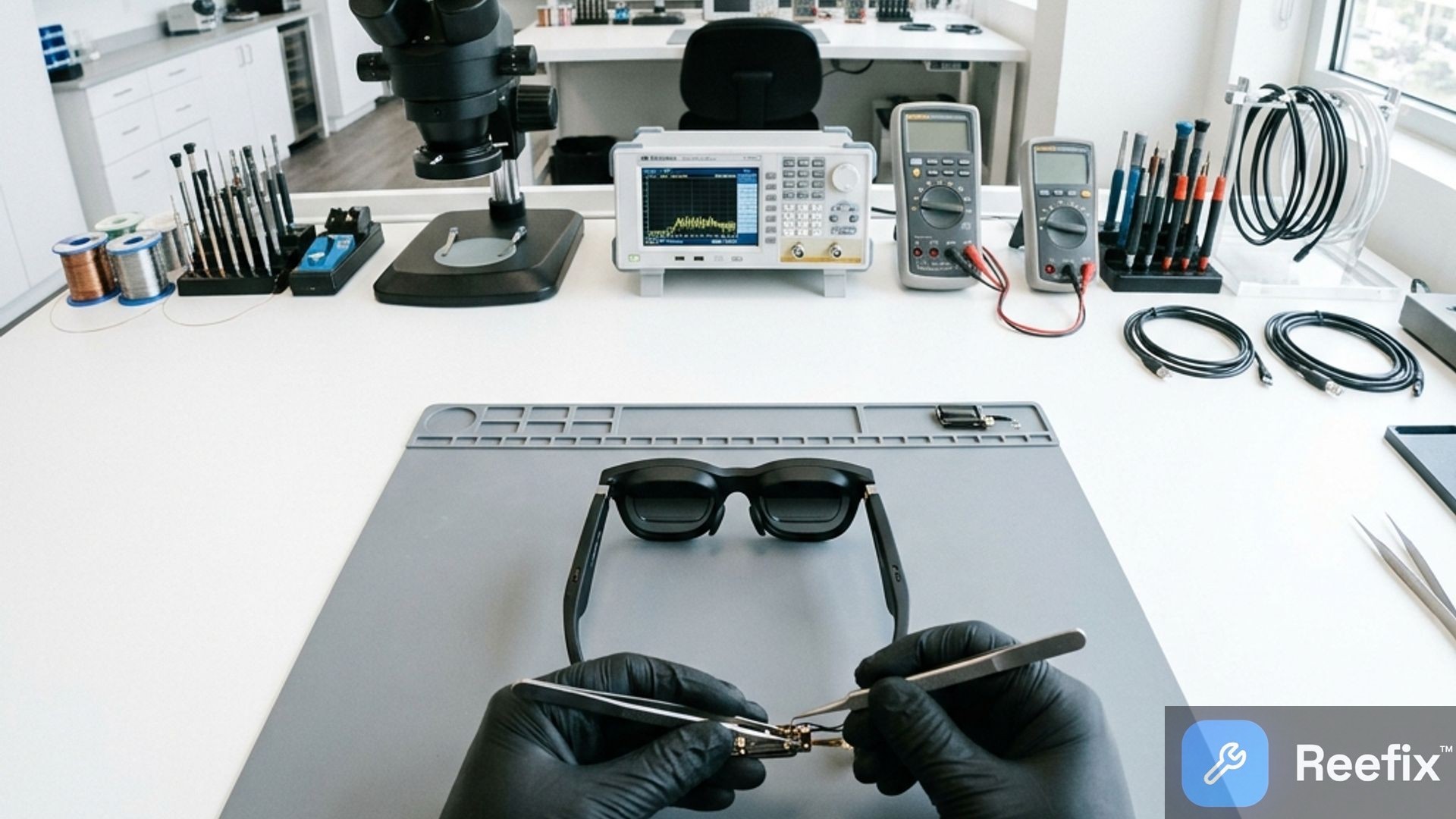
⚠️ SAFETY WARNING / FIRE RISK. This device contains lithium batteries. Improper puncturing or bending during disassembly can cause explosions or flames. The intervention requires precision and the assistance of a specialized technician is recommended. ReeFix provides this diagnosis EXCLUSIVELY for educational and informational purposes.
Technical note: Although officially marketed as Ray-Ban Meta Wayfarer (Gen 2), many users refer to these smart glasses as "Ray-Ban Wayfarer 2". This guide applies exclusively to the smart model with Bluetooth technology and integrated camera, and not to the classic Ray-Ban Wayfarer II sunglasses without electronic components.
CAUSE A: Software, App, or RF Interference Issues
- Probability: 75% (High)
- Key signals/indicators:
- Disconnections mainly occur when the smartphone is in standby or the screen is off.
- The "Meta AI" app (previously known as "Meta View") is frequently closed by the phone's operating system.
- The problem worsens in environments with many wireless devices (e.g., crowded offices, public areas with Wi-Fi).
- The glasses struggle to re-pair even after turning the smartphone's Bluetooth off and on again.
- Why it happens: Mobile operating systems, especially with proprietary customizations (e.g., Xiaomi HyperOS, Samsung One UI), can terminate background processes of the "Meta AI" app to save battery, forcibly closing the Bluetooth connection. Alternatively, an environment saturated with 2.4 GHz signals (Wi-Fi, other Bluetooth devices) can cause data packet collisions, exceeding reconnection timeout limits.
- Quick checks (DIY):
- "Meta AI" app settings: On your smartphone, go to the "Meta AI" app settings. Ensure it has unlimited background execution permissions and is excluded from any battery optimization (e.g., "Power saving" or "Battery management").
- Smartphone Bluetooth reset: Try disabling and re-enabling Bluetooth on your smartphone. If that's not enough, remove the glasses from the list of paired Bluetooth devices and try pairing from scratch.
- Test environment: Move to an environment with fewer active wireless devices and check if stability improves.
- Updates: Check that both the glasses' firmware and the "Meta AI" app are updated to the latest version.
- Typical user error: Not granting the necessary permissions to the "Meta AI" app or ignoring operating system messages related to power saving.
- Costs: 0€ (DIY solution).
CAUSE B: Physical Damage to Antenna or Connectors
- Probability: 15% (Medium)
- Key signals/indicators:
- Disconnections occur or worsen when you move your head, open, or close the temples of the glasses.
- The connection is unstable even in interference-free environments.
- Bluetooth range seems reduced, even a few meters from the smartphone.
- Why it happens: The Bluetooth/Wi-Fi antenna is integrated into a temple via a flexible printed circuit (FPC) or LDS technology. Mechanical stress due to daily use (opening/closing temples, accidental twists) can cause micro-fractures in the FPC's conductive traces or loosen the micro-connectors that connect the antenna to the motherboard. This interrupts the continuity of the RF signal.
- Counter-examples: If the problem is resolved with software settings (Cause A) or by cleaning the contacts (Cause C), this cause is less likely.
- Output for technician: "Verify FPC antenna integrity and hinge contacts with microscopic inspection. 2.4 GHz RF spectrum analysis for anomalous attenuation of the Bluetooth module's transmission power integrated into the Qualcomm Snapdragon AR1 Gen 1 SoC."
- Costs: High (repair by a specialized micro-soldering technician, estimated over 150-250€) or replacement of the entire device.
CAUSE C: Power Supply or Charging Case Issues
- Probability: 10% (Low)
- Key signals/indicators:
- Difficulty even with initial pairing or factory reset.
- The glasses disconnect suddenly with an apparently charged battery, or show unexpected autonomy problems.
- Charging problems or failure to recognize the glasses when inserted into the case.
- Golden charging pins visibly dirty, oxidized, or worn on the frame or inside the case.
- Why it happens: An internal battery with high internal resistance (ESR) cannot provide stable current peaks to the RF chip during transmission, causing micro-resets (brown-out). Alternatively, dirt or oxidation on the charging pins prevents proper low-level communication between the glasses and the case, which is essential for pairing and synchronizing Bluetooth security keys. A defect in the case's microcontroller can also cause instability.
If a continuous red flashing LED is observed on the case, the problem often lies precisely in the pogo pins not making perfect contact. Targeted cleaning or a slight manual repositioning of the glasses usually resolves this specific blockage.
- Quick checks (DIY):
- Clean contacts: With a dry microfiber cloth or a cotton swab slightly dampened with isopropyl alcohol (make sure it is completely dry before putting the glasses back), gently clean the golden pins inside the case and the corresponding contacts on the glasses' frame.
- Pairing mode: Insert the glasses into the case. Press and hold the back button of the case for at least 5 seconds, until the front LED flashes blue. Try pairing again from your smartphone.
- Factory Reset of the glasses: If pairing still fails, perform a true factory reset. Remove the glasses from the case and turn them on. Close both temples (fold the glasses). With the temples folded, quickly press the capture button 5 times consecutively (the notification LED will turn solid orange). Then, press and hold the same capture button until the LED starts flashing alternately white and orange, then release it. The glasses will restart in pairing mode.
- Tools needed (Technician):
- The use of an electrical contact cleaner like WD-40 Specialist is recommended to restore pin conductivity.
- A Fluke precision digital multimeter to verify the correct voltage output from the case.
- Safety notes: Replacing the internal battery is extremely complex and risky for an inexperienced user due to the risk of fire/explosion of lithium batteries.
- Costs: Low (DIY cleaning), Medium (replacement with a new Ray-Ban Meta Gen 2 charging case, cost about 80-150€), High (internal battery replacement by a technician, if possible, estimated >100€).
WHICH ONE IS YOURS?
Operational decision:
- If the checks for CAUSE A resolve the problem: You have solved it yourself.
- If CAUSE A does not resolve, but you suspect CAUSE C (dirty contacts or case): Try cleaning the contacts, pairing mode, or factory reset. If it doesn't work, consider purchasing a new Ray-Ban Meta Gen 2 charging case.
- If CAUSE A does not resolve and symptoms indicate CAUSE B or internal power supply issues (battery/PMIC): Contact a specialized technician. Given the complexity and high costs for internal hardware damage, consider replacing the device if the repair estimate exceeds 150-200€}.
Why do my Ray-Ban Wayfarer 2 disconnect from Bluetooth?
They often depend on issues with the Meta AI app (formerly Meta View), phone power-saving settings, or wireless interference.
How to tell if Bluetooth disconnections are a software problem?
If they occur in standby, if the Meta AI app closes by itself, or if they worsen in crowded places, the problem is almost certainly software.
When is a technician recommended for Bluetooth disconnections of Ray-Ban Wayfarer 2?
When software resets do not work and damage to the antenna or internal contacts is suspected, to avoid risks with the lithium battery.
This diagnostic report is generated using an artificial intelligence system (RAG) based on the aggregation of online data. No publication happens automatically: the rigorous multi-step moderation by Luca Chia (Electronic Expert) validates its logical coherence and technical plausibility regarding the described symptoms, confirming the correctness of the AI's diagnostic reasoning, without however constituting an absolute guarantee of resolution for individual cases.