
Steam Deck LCD Not Charging and Poor Battery Life: Diagnosis
Generated by ReeFix AI · Sources: technical and specialist documentation (see Sources section)
Revision of 30/06/2026
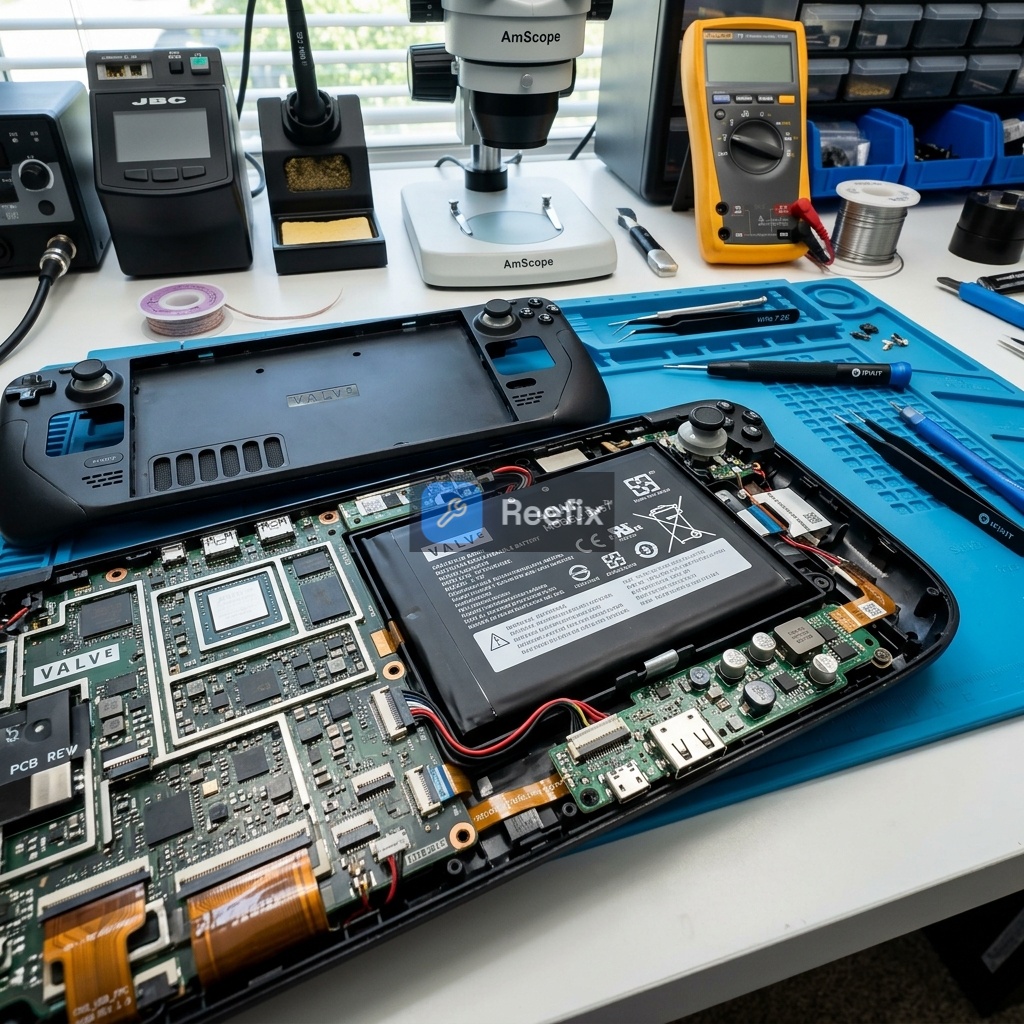
⚠️ SAFETY WARNING / FIRE RISK. This device contains lithium batteries. Improper puncturing or bending during disassembly can cause explosions or flames. The intervention requires precision and it is recommended to seek the help of a specialized technician. ReeFix provides this diagnosis EXCLUSIVELY for educational and informational purposes.
REQUIRED TOOLS
For an accurate diagnosis and potential intervention, you may need:
- Steam Deck 45W USB-C Power Delivery Charger: A certified power supply and a quality USB-C cable are essential for testing charging negotiation. Steam Deck 45W USB-C Power Delivery Charger
- USB-C Power Meter Tester: Useful for monitoring voltage and current drawn, verifying if the device attempts to charge at 15V. USB-C Power Meter Tester
- iFixit Precision Screwdriver Kit: For safely opening the device, if internal intervention is necessary.
- Internal Replacement Battery for Steam Deck LCD (40Wh): Only if tests confirm irreversible degradation. Internal Replacement Battery for Steam Deck LCD (40Wh)
PHASE 1: Preliminary checks and software reset
Objective: Exclude the most common, less invasive, and often user-resolvable causes, focusing on external power and software calibration.
Cause 1: Charger or USB-C cable issues (Probability: 20%)
- Key signals: The charging LED does not light up at all or flashes abnormally; the console does not turn on or turns off immediately if not connected.
- Why it happens: A non-compliant charger (e.g., with less than 45W or without Power Delivery) or a damaged cable does not allow the negotiation of the 15V/3A required for Steam Deck charging. This is a typical user error.
- Quick checks:
- Try another charger and cable: Use a USB-C Power Delivery power supply of at least 45W and a good quality USB-C cable, preferably original or from a reliable brand. Make sure the cable supports Power Delivery.
- Observe the LED: After connecting a known working charger, check the behavior of the LED next to the USB-C port. It should light up steadily (white or orange depending on the status). If it does not light up, or flashes, the problem persists.
Cause 2: Power management firmware misalignment or PMIC lock (Probability: 30%)
- Key signals: The charge percentage remains fixed (e.g., 0% or 99%) without changing, or the console suddenly turns off even with medium-high indicated percentages. It does not turn on if not connected to the power supply.
- Why it happens: Calibration data for the "gas gauge" chip (which monitors battery status) can become corrupted, especially after periods of prolonged inactivity or micro-voltage fluctuations. In addition, the power management integrated circuit (PMIC) can enter a protective lock state.
- Quick checks:
- Hardware reset of the charging controller (Force PD / PMIC Reset):
- Completely turn off the Steam Deck and disconnect the charger.
- Press and hold the Volume - (minus) button and the Quick Access (...) button (the three dots) simultaneously.
- While holding them down, press the Power button once.
- Continue to hold Volume - and (...) for another 5-10 seconds, then release them.
- The charging LED will start flashing (it may take up to a minute). Wait for it to stop before trying to turn on the console.
- "Gas gauge" reset via BIOS (Battery Storage Mode):
- Completely turn off the Steam Deck (disconnected from the power supply).
- Press and hold the Volume + button and then press the Power button. Continue to hold Volume + until the BIOS menu appears.
- In the BIOS, navigate to "Setup Utility" and select the "Power" menu on the left.
- Select the "Battery Storage Mode" option and confirm. The console will turn off (the LED will flash 3 times to confirm activation).
- Leave the console disconnected for at least 5-10 minutes.
- Reconnect the original 45W power supply to wake the console from storage mode and try to turn it on.
- Hardware reset of the charging controller (Force PD / PMIC Reset):
PHASE 2: Internal hardware analysis and critical components
Objective: Investigate hardware problems that require opening the device, with a higher probability of requiring a replacement part or technician intervention.
Cause 3: Chemical degradation or battery imbalance (Probability: 40%)
- Key signals: Extremely reduced autonomy (a few minutes), sudden shutdowns under heavy load even with medium-high indicated percentages, the charge indicator fluctuates rapidly.
- Why it happens: Over time and charge/discharge cycles, the internal resistance of lithium-ion cells increases, reducing effective capacity and causing voltage drops under stress.
- Checks (for experienced user or technician):
- Check "Battery Health" from SteamOS: Boot the Steam Deck into desktop mode (hold down the Power button and select "Switch to Desktop"). Open system settings and look for battery information. Check the "remaining maximum capacity" against the original capacity (40Wh). If it is significantly less than 80%, the battery is degraded.
- Costs: An Internal Replacement Battery for Steam Deck LCD (40Wh) costs approximately €50-€90. The intervention is of high difficulty for the average user, given the need to remove strong adhesives and the risk of damaging the battery or other components.
- Safety notes: Battery removal requires extreme caution. Use controlled heat and specific tools to avoid puncturing or bending the cell pack, preventing fire risks.
Cause 4: Physical damage or desoldering of the USB-C port (Probability: 10%)
- Key signals: Charging only activates when moving or tilting the cable connector, total absence of charging LED, failure to detect external peripherals (e.g., dock) connected.
- Why it happens: The USB-C port is subject to mechanical stress. Micro-cracks in the solder joints of the power pins (VBUS/GND) or communication pins (CC1/CC2) can prevent proper Power Delivery handshake.
- Quick checks:
- Visual inspection: With good light (and possibly a magnifying glass), inspect the inside of the USB-C port. Look for bent pins, oxidation, debris, or visibly cracked solder joints around the port itself.
- Stability test: With the charger connected, try gently moving the connector in the port. If charging intermittently activates and deactivates, it is a strong indicator of a port problem.
Very often, in fact, the first sign of wear is a loose Steam Deck USB-C port or one that 'wobbles' noticeably when the cable is inserted. If you notice this mechanical play, avoid forcing the connector to prevent tearing the underlying solder traces on the motherboard.
- Output for technician: A technician will perform a microscopic inspection and electrical continuity tests to verify the integrity of the pins and solder joints on the motherboard. Repair requires microsoldering.
FINAL VERIFICATION
After performing the checks in PHASE 1:
- If the problem is resolved by changing the charger/cable or performing the BIOS and PMIC resets, the fault was software-related or due to unsuitable accessories.
- If the problem persists, proceed to PHASE 2. The highest probability (40%) is that the battery is degraded. If autonomy is very low and "Battery Health" is below 80%, battery replacement is the most likely solution.
- If the battery seems healthy but charging is absent or intermittent, even after resets, carefully inspect the USB-C port. Physical damage is the next suspect (10%).
- A physical fault in the charging chip on the motherboard (burnt PMIC, <5%) is rare and requires professional diagnostic equipment (thermal camera, multimeter) to be confirmed and repaired via microsoldering, making the intervention complex and costly.
OPERATIONAL DECISION: If PHASE 1 checks do not resolve the issue and "Battery Health" is low (<80%), proceed with replacing the Internal Replacement Battery for Steam Deck LCD (40Wh) or consult a technician; if the USB-C port is visibly damaged, consult a technician; otherwise, if the cost of motherboard repair exceeds cost-effectiveness, consider replacing the device.
Perché lo Steam Deck LCD non carica e la batteria dura poco?
Le cause includono un caricabatterie difettoso, un glitch del firmware/PMIC o una batteria degradata. Una diagnosi accurata è fondamentale.
Come capire se il problema di ricarica dello Steam Deck è la batteria o il caricabatterie?
Usa un tester USB-C. Se lo Steam Deck non negozia i 15V, il problema risiede nell'alimentatore non idoneo o nel circuito di ricarica interno.
Quando è consigliabile rivolgersi a un tecnico per problemi di ricarica dello Steam Deck?
Rivolgiti a un tecnico se i reset software non funzionano, se la porta USB-C è danneggiata o se non hai esperienza nello smontaggio della batteria.
This diagnostic report is generated using an artificial intelligence system (RAG) based on the aggregation of online data. The moderation by Luca Chia (Electronic Expert) validates its logical coherence and technical plausibility regarding the described symptoms, confirming the correctness of the AI's diagnostic reasoning, without however constituting an absolute guarantee of resolution for individual cases.