
Steam Deck OLED Black Screen on Startup: Diagnosis and Solutions
Generated by ReeFix AI · Sources: technical and specialist documentation (see Sources section)
Revision of 30/06/2026
SAFETY WARNING / FIRE RISK. This device contains lithium batteries. Improper puncturing or bending during disassembly can cause explosions or flames. The intervention requires precision and the assistance of a specialized technician is recommended. ReeFix provides this diagnosis EXCLUSIVELY for educational and informational purposes.
TECHNICAL CHECKLIST
OBJECTIVE: Identify the cause of the black screen on startup on the Steam Deck OLED, especially after sleep mode.
- External Display Verification:
- Connect the Steam Deck to an external monitor via a USB-C dock with DisplayPort Alt Mode.
- Purpose: Determine if the GPU renders the SteamOS interface or if the problem is isolated to the internal panel.
- Key signal: If the external display works, the problem is likely software-related or tied to the internal panel/connector.
- System Logical Reset:
- Hard Reset EC: Press and hold the power button for 15-20 seconds until it completely shuts down, then power it back on.
- BIOS/APU Reset: With the device off, press and hold
Volume Down+ quick access button...+Powerbutton until you hear a beep. Release and wait for it to boot. - Purpose: Resolve firmware freezes or temporary driver conflicts.
- Often happens when: The system gets stuck in an abnormal sleep state, despite showing activity (fan, haptics, audio).
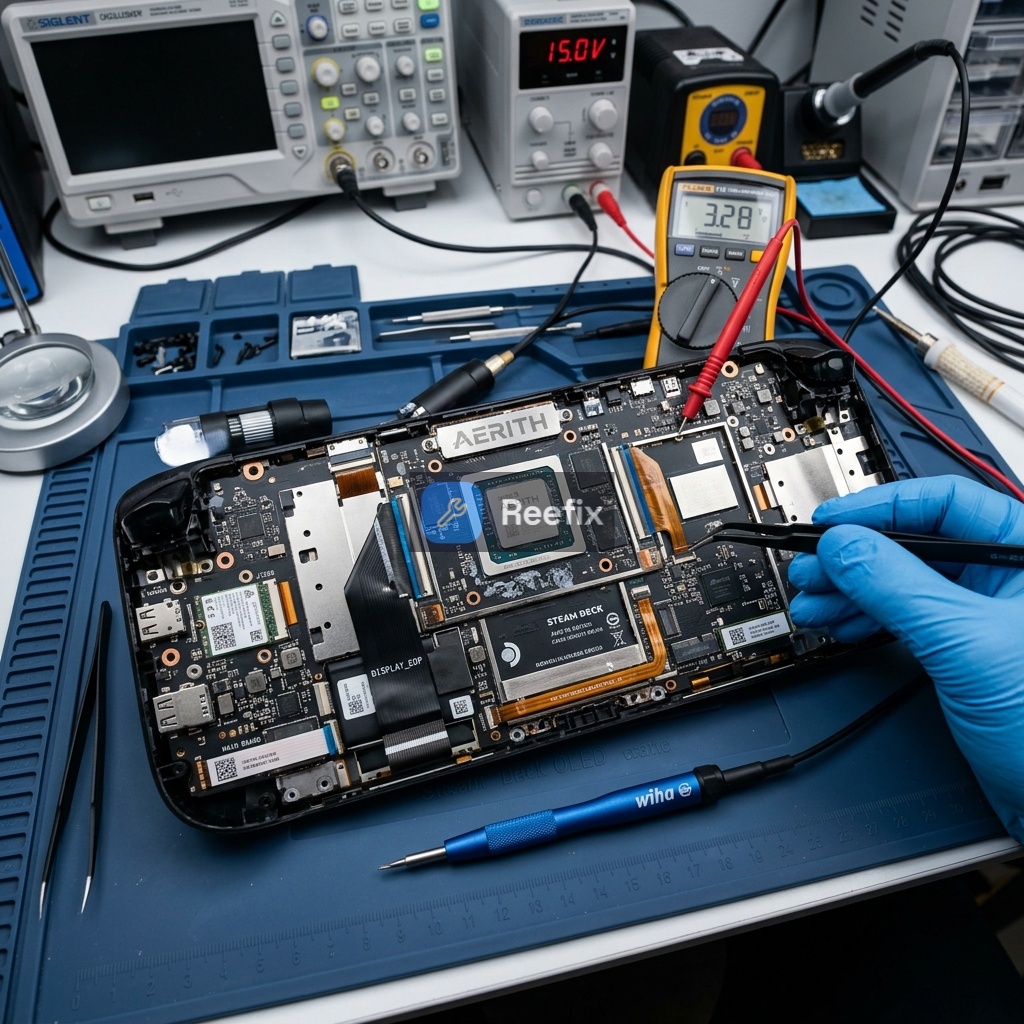
- FPC Connector Visual Inspection (if resets don't resolve):
- WARNING: Always disconnect the battery before any internal inspection.
- Remove the back shell.
- Visually inspect the display's flexible flat cable (FPC) and its connector on the motherboard. Look for bent pins, corrosion, or imperfect insertion.
- Purpose: Rule out a physical connection defect.
- Edge case: Temperature fluctuations or impacts can cause micro-interruptions in the connector.
INSPECTION RESULT
Quick Decision (within 60 seconds):
-
If the external display works (Check 1 OK) AND the logical reset (Check 2) resolves the problem (65% probability):
-
DIY Repair: HIGHLY LIKELY. The problem is software-related.
- Cost: €0.
- Action: Monitor behavior. If it recurs, try changing the SteamOS update channel (e.g., "Main" or "Developer") or reinstall SteamOS via an official recovery image. No specific tools are required beyond a USB stick for the recovery image.
-
If the external display works (Check 1 OK) BUT the logical reset (Check 2) DOES NOT resolve the problem (10-20% probability):
-
DIY Repair (if experienced) or Consult a technician: PROBABLE.
- Estimated cost: Low-Medium (€10-50 for FPC cleaning/reinsertion, €80-150 for FPC cable replacement or in-depth diagnosis).
- Action:
- DIY (if you have the right manual skills): Inspect and clean FPC contacts with isopropyl alcohol. Ensure the cable is inserted correctly and securely. Required tools: iFixit Pro Tech Toolkit precision screwdriver kit, iFixit plastic opening picks, ESD anti-static wrist strap.
- Technician: Requires verification of Display PMIC power sequencing or voltage measurements on the FPC connector. This suggests a more specific hardware problem with the display or its power management (20% probability).
-
If the external display DOES NOT work (Check 1 FAILS) OR the screen is permanently black under any condition (5% probability):
-
Consult a technician or Replace the device: HIGH PROBABILITY.
- Estimated cost: High (€200-350+).
- Action: The fault is likely physical and severe (defective OLED panel, Display PMIC integrated into the screen, or APU/motherboard failure).
- A technician can test with a Steam Deck OLED replacement screen. If panel replacement does not resolve, the problem is on the motherboard (APU or main PMIC). In this case, repair might be uneconomical compared to the cost of a new device.
Output for technician: The device presents a black screen on startup, especially from sleep. Fan, haptics, and audio are operational. Verification of Display PMIC power sequencing, FPC connector integrity, and testing with a test OLED panel are required.
Why is my Steam Deck OLED showing a black screen on startup?
A black screen on your Steam Deck OLED can indicate software glitches, firmware issues, or a problem with the internal display panel or its connection. External display verification helps narrow down
How can I diagnose a black screen on my Steam Deck OLED?
Start by connecting to an external monitor to check if the GPU is rendering. Perform a hard reset (EC) and a BIOS/APU reset to rule out software freezes or temporary driver conflicts.
When should I seek professional help for a Steam Deck OLED black screen?
If external display verification and system resets don't resolve the issue, or if you suspect a hardware fault with the internal panel or its connectors, professional diagnosis is recommended due to t
This diagnostic report is generated using an artificial intelligence system (RAG) based on the aggregation of online data. The moderation by Luca Chia (Electronic Expert) validates its logical coherence and technical plausibility regarding the described symptoms, confirming the correctness of the AI's diagnostic reasoning, without however constituting an absolute guarantee of resolution for individual cases.