
Steam Deck OLED: No Audio After Restart - Diagnosis
Generated by ReeFix AI · Sources: technical and specialist documentation (see Sources section)
Revision of 01/07/2026
⚠️ SAFETY WARNING / FIRE HAZARD. This device contains lithium batteries. Improper puncturing or bending during disassembly can cause explosions or flames. The intervention requires precision and the assistance of a specialized technician is recommended. ReeFix provides this diagnosis EXCLUSIVELY for educational and informational purposes.
TECHNICAL CHECKLIST
Proceed with these checks in order, from most to least probable.
- Software Verification (Desktop Mode) — Probability 55%
- Action: Access Desktop mode (hold the power button and select "Switch to Desktop"). Open KDE Plasma audio settings and check that the default output device is set to "Internal Speakers" or equivalent. Carefully check the system mixer to ensure that the "Chromium" application or the master audio channel are not muted.
- Key Signals: Audio works normally via Bluetooth headphones or a USB-C adapter, but the integrated speakers remain silent in both Gaming and Desktop modes.
- Why: SteamOS uses the KDE Plasma desktop environment. If an application (often the Chromium browser also used by the Steam interface) is muted in Desktop Mode, this state can persist and block audio even in Gaming Mode after a restart.
- Common Error: This often happens after using the browser in Desktop mode and accidentally muting its audio, forgetting to unmute it.
- 3.5 mm Jack Mechanical Inspection — Probability 25%
- Action: Repeatedly insert and remove a 3.5 mm jack into the audio jack. Observe if the operating system correctly detects the transition between headphones and internal speakers (the headphone icon should appear and disappear). Visually inspect the inside of the jack with a flashlight for dust or debris. If you suspect a blockage, apply a small amount of dry electrical contact cleaner spray and repeat the jack insertion.
- Key Signals: The system constantly shows the headphone icon active even when no jack is inserted, and there is no audio from the speakers.
- Why: Inside the jack, there is a small mechanical switch ("jack detect"). If it is blocked or dirty, the system believes headphones are always connected, deactivating the internal speakers.
Furthermore, on many Steam Deck OLED models, a grounding defect of the 3.5 mm jack can cause an annoying hiss or hum in the headphones. If you experience this static noise even at zero volume, it may be necessary to electrically isolate the internal audio board mounting screws.
- Embedded Controller Reset (EC Reset) — Probability 15%
- Action: Completely shut down the Steam Deck. Simultaneously press and hold the "Volume -" button and the "Quick Access" button (the one with the three dots
...). While holding them, press the power button once, then release all buttons. You will hear an audible signal (chirp) and the white status LED will start flashing to confirm the reset has started. Wait 1-2 minutes: the screen will remain black temporarily before restarting. - Key Signals: The internal audio card is not detected in any way by the operating system (no output device present in audio settings, not even in Desktop Mode).
- Why: An EC Reset restores the low-level controller firmware and BIOS, resolving power management IC (PMIC) or audio codec blocks that prevent proper hardware detection.
- Flat Cable and Speaker Integrity — Probability 5%
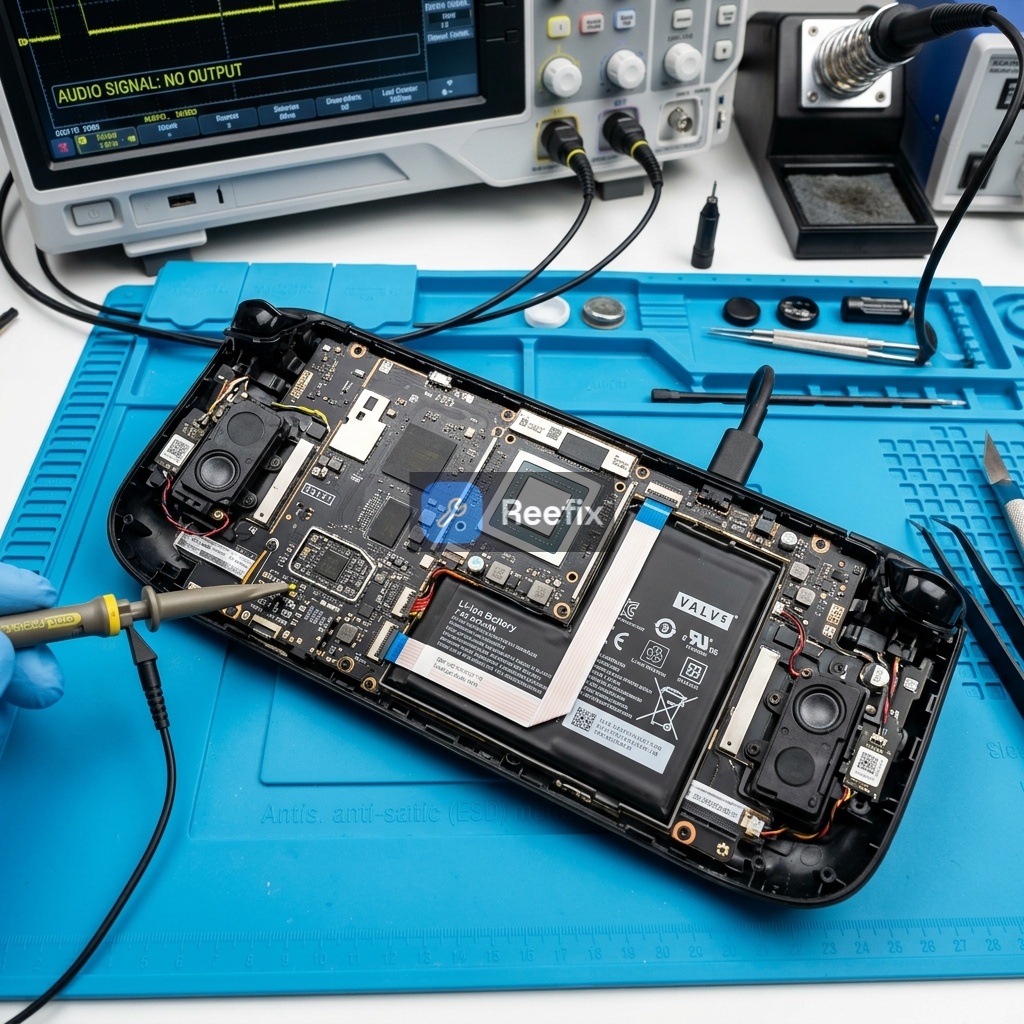
- Action: This check requires opening the device. It is recommended to consult a qualified technician. If proceeding independently, after removing the back cover and disconnecting the battery, carefully inspect the flexible flat cables connecting the audio module to the motherboard and the speaker connections. Look for abnormal bends, tears, or disconnections.
- Key Signals: None of the software or reset steps have resolved the issue. The device has previously suffered impacts, drops, or been exposed to liquids.
Required Tools (for hardware interventions)
- Precision screwdriver kit for Steam Deck OLED
- Plastic opening tools for Steam Deck OLED
- Dry electrical contact cleaner spray
- Replacement internal speakers for Steam Deck OLED
Output for Technician
"Steam Deck OLED with total audio absence from speakers after restart. External audio (Bluetooth/USB-C) working. Diagnostic priority: verify PipeWire/KDE mixer configuration (Chromium mute), 3.5 mm 'jack detect' pin inspection, EC Reset. If negative, proceed with physical inspection of audio flat cables and speakers, audio codec power evaluation."
Indicative Costs
- Software resolution: €0
- Contact cleaner spray: €0-€5
- Speaker or jack module replacement: €15-€25 (part cost)
- Specialized technician labor: €30-€60
Prevention Tips
To reduce the likelihood of future audio problems:
- Always check mixer levels in Desktop mode before restarting or switching to Gaming Mode, especially after using browsers or web apps.
- Avoid forcing jacks into the audio jack and keep it clean from dust and debris.
- Regularly install SteamOS updates, which often include fixes for hardware and software management.
INSPECTION RESULT
- If audio works via Bluetooth/USB-C headphones but not from internal speakers (55%): Perform software checks in Desktop Mode. You can do this yourself, the cost is €0.
- If the headphone icon is always active (25%): Clean the 3.5 mm jack with contact spray. You can try this yourself, the cost is €0-€5 for the spray.
- If no internal audio device is detected by the system (15%): Perform an EC Reset. You can do this yourself, the cost is €0.
- If all previous checks fail (5%): Contact a specialized technician for a thorough hardware inspection (flat cables, speakers). The estimated cost is €30-€60 for labor, plus €15-€25 for any spare parts.
- Device replacement: Consider this option only if a technician diagnoses a serious motherboard failure with repair costs exceeding €100-€150, making the repair uneconomical.
Why is my Steam Deck OLED experiencing no audio after restart?
The most common cause is a software issue in Desktop Mode, where an application like Chromium or the master audio channel might be muted, persisting into Gaming Mode.
How can I diagnose no audio on my Steam Deck OLED?
Start by checking audio settings in Desktop Mode for muted applications or incorrect output devices. Test with headphones to isolate internal speaker issues.
When should I seek professional help for Steam Deck OLED audio problems?
If software checks fail and you suspect a hardware issue (e.g., faulty jack, speaker), professional diagnosis is recommended due to the device's complexity and battery risks.
This diagnostic report is generated using an artificial intelligence system (RAG) based on the aggregation of online data. The moderation by Luca Chia (Electronic Expert) validates its logical coherence and technical plausibility regarding the described symptoms, confirming the correctness of the AI's diagnostic reasoning, without however constituting an absolute guarantee of resolution for individual cases.