
Ray-Ban Wayfarer 2: Smartphone Call Audio - Solution
Generated by ReeFix AI · Sources: technical and specialist documentation (see Sources section)
Revision of 07/07/2026
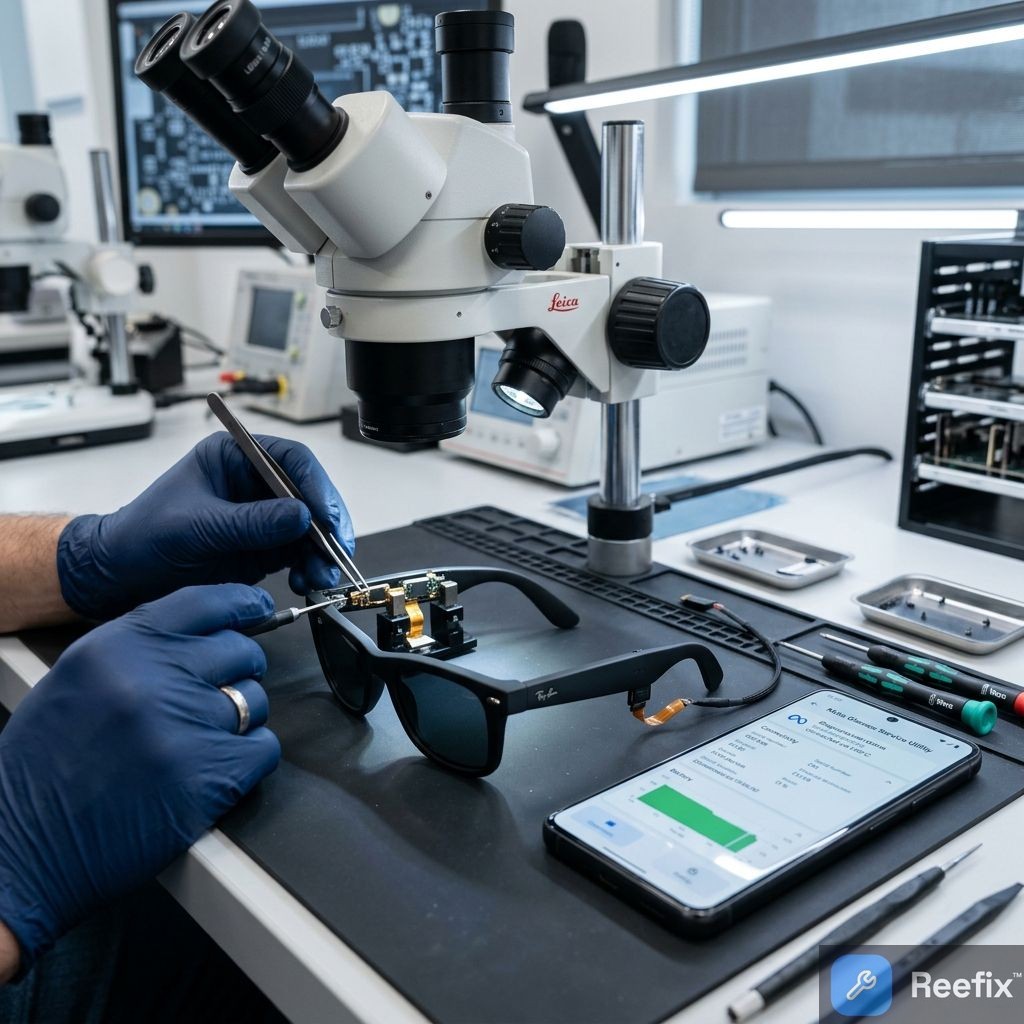
⚠️ SAFETY WARNING / FIRE HAZARD. This device contains lithium batteries integrated into the temples. Never attempt to disassemble, puncture, or bend the glasses frame: puncturing lithium cells can cause short circuits, flames, or explosions. For any internal hardware intervention, exclusively contact an authorized service center. ReeFix provides this diagnosis for informational purposes only.
If you own Ray-Ban Meta Wayfarer (Gen 2) smart glasses or the previous Ray-Ban Stories Wayfarer (often generically referred to as Ray-Ban Wayfarer 2 smart) and are experiencing issues with call audio, this guide will help you identify and resolve the problem.
CAUSE A: Software conflict or failed Bluetooth HFP negotiation
Probability: 50%
Why it happens: The problem occurs when the smartphone struggles to switch from the Bluetooth A2DP profile (used for music/video) to the HFP profile (necessary for two-way calls). The phone's operating system, to avoid interrupting the call, diverts the audio to its internal speaker. This is often due to a corrupted Bluetooth cache or suboptimal interaction between the Meta View app and your smartphone's Bluetooth stack.
Key signs:
- Music, podcasts, and videos play correctly through the glasses.
- Call audio instantly switches to the smartphone as soon as you answer or initiate a call.
- The problem is temporarily resolved by restarting the smartphone's Bluetooth.
Quick checks (do it yourself):
- Bluetooth restart: Turn Bluetooth off and on again on your smartphone.
- Cross-test: Try the glasses with a second smartphone (if available), preferably of a different brand or operating system, to understand if the problem is specific to your phone.
- Connection reset: Completely unpair the glasses from your smartphone's Bluetooth settings, then re-pair them.
- App reinstallation: Uninstall and reinstall the Meta View application, then perform a new pairing of the glasses.
- Audio settings: Check in your smartphone's Bluetooth settings that the "Calls" (or "Phone Audio") option is active for the Ray-Ban Wayfarer 2. On iOS, check "Call Audio Routing" and try to force it to "Bluetooth Headset".
CAUSE B: Dirty or faulty Wear Detection sensor
Probability: 30%
Why it happens: The glasses are equipped with a proximity sensor located inside the right temple that detects if they are being worn. If this sensor is dirty, obstructed, or malfunctioning, the firmware interprets that the glasses are not on your face. For privacy reasons, the system deactivates the HFP profile for calls, forcing the audio to the smartphone. An accumulation of sebum, makeup, or dust is a common cause. In case of a hardware failure of the sensor, repair or out-of-warranty replacement through official assistance can have an estimated cost between 100€ and 150€, making the intervention cost-effective compared to buying a new pair (around 329€-400€).
If you also notice that the photo and video capture button stops responding, the cause is almost certainly the wear detection sensor not correctly detecting contact with the face. Many users temporarily resolve this by deactivating the 'Wear Detection' function directly from the Meta View app settings.
Key signs:
- The glasses do not emit the power-on beep when you put them on.
- The Meta View app shows the glasses' status as "not worn" even if you have them on your face.
Quick checks (do it yourself):
- Sensor cleaning: With a microfiber cloth and some 99% Isopropyl Alcohol, thoroughly clean the sensor area located inside the right temple.
- Temporary deactivation: If the Meta View app allows it, temporarily deactivate the automatic wear detection function (Wear Detection) in the device settings to see if call audio is restored.
Tools needed for cleaning:
- 99% Isopropyl Alcohol
- Precision Microfiber Cloths
CAUSE C: Priority conflict with other Bluetooth devices
Probability: 15%
Why it happens: This situation often occurs when other Bluetooth devices connected to your smartphone (e.g., smartwatch, car infotainment systems, headphones) try to take control of the HFP profile for calls. The smartphone system may have difficulty establishing a clear priority, preventing the glasses from correctly activating the two-way audio channel.
Key signs:
- The problem mainly occurs when you are in the car or when you have other active Bluetooth devices connected to your smartphone.
Quick checks (do it yourself):
- Bluetooth isolation: Temporarily turn off or disconnect all other Bluetooth devices associated with your smartphone and try the call again with only the Ray-Bans connected.
- Priority check: Check your smartphone's advanced Bluetooth settings to see if it's possible to assign priority to the Meta Ray-Ban Wayfarer 2 glasses for calls.
WHICH ONE IS YOURS?
Considering the probabilities:
-
If the signs match CAUSE A (50%): Start with the quick checks (Bluetooth restart, unpairing/re-pairing, app reinstallation). These are the most common solutions and you can do them yourself. If the problem persists, try testing with another smartphone. If it works with the second smartphone, the problem is almost certainly with your phone and you might need to consider a network or factory reset of the phone itself. If the problem persists even with another smartphone, move to point 2.
-
If the signs match CAUSE B (30%): Cleaning the sensor on the right temple is an excellent first step you can do yourself. Use the recommended products gently. If after cleaning and temporary deactivation of wear detection the problem persists, a hardware failure of the sensor is likely.
-
If the signs match CAUSE C (15%): Try isolating the glasses by deactivating other Bluetooth devices. This is a simple and quick check.
Operational decision: First perform the quick checks for Cause A (the most probable, 50%) and the cleaning/deactivation for Cause B (30%). If you use multiple devices simultaneously, also perform the tests for Cause C (15%). If after all these DIY attempts the problem persists, contact a specialized technician for an in-depth hardware diagnosis (e.g., FPC flat cable or sensor check). Device replacement is recommended only if the technician declares the repair uneconomical or impossible.
Why do my Ray-Ban Wayfarer 2 not play call audio?
It often depends on a software conflict or a failed negotiation of the Bluetooth HFP profile, which diverts the audio to the smartphone.
How to understand if the call audio problem on Ray-Ban Wayfarer 2 is software-related?
If music and videos work but calls switch to the phone, and restarting Bluetooth helps, it is a software conflict.
When should I contact a technician for Ray-Ban Wayfarer 2 with call audio problems?
Contact a technician if software resets and sensor cleaning do not resolve the issue, indicating a possible internal hardware failure.
This diagnostic report is generated using an artificial intelligence system (RAG) based on the aggregation of online data. No publication happens automatically: the rigorous multi-step moderation by Luca Chia (Electronic Expert) validates its logical coherence and technical plausibility regarding the described symptoms, confirming the correctness of the AI's diagnostic reasoning, without however constituting an absolute guarantee of resolution for individual cases.