Xreal Air 2 Ultra: No Signal and Repair Diagnosis
Generated by ReeFix AI · Sources: technical and specialist documentation (see Sources section)
Revision of 07/07/2026
⚠️ SAFETY WARNING. Incorrect intervention on this device can lead to unforeseen risks or void the warranty. It is recommended not to proceed without adequate technical skills. ReeFix provides this diagnosis EXCLUSIVELY for educational and informational purposes. Any physical check or cleaning must be performed by disconnecting the glasses from the host device (smartphone, PC, or console) to avoid short circuits or damage to the delicate internal optical components.
QUICK TEST
Xreal Air 2 Ultra glasses do not have an internal battery and do not work on their own. They always require power and video signal from a compatible external device via USB-C. A lack of signal means this communication is interrupted.
- Check Cable and Source (Probability 60-75%):
- Action: Try the glasses with another USB-C cable that is certified for DisplayPort Alternate Mode (DP Alt Mode) and supports at least the USB 3.2 Gen 2 standard. The original Xreal cable is ideal. * Why: Many common USB-C cables are only for charging or USB 2.0 data and cannot carry the required high-speed video signal. This is the most common mistake.
- Action: Connect the glasses to a different and definitely compatible source (e.g., another high-end smartphone, a PC with a dedicated GPU and USB-C DP Alt Mode port, a Steam Deck, ROG Ally, or MacBook). * Why: Not all USB-C devices support DP Alt Mode. If your smartphone doesn't support it, the glasses won't receive video even if powered.
- Key Signals: If the glasses work with a new cable and a compatible source, the problem was there. If the glasses' LED turns on but the screen remains black, source compatibility or the cable are the primary suspects.
- Cost: An Xreal Air 2 Ultra USB-C Cable costs about 20-40 euros.
- Check Proximity Sensor (Probability 10-15%):
- Action: Thoroughly clean the area between the two lenses where the proximity sensor is located. Use a microfiber cloth or an optical lens and sensor cleaning kit. * Why: This sensor turns off the displays if it doesn't detect that the glasses are being worn. Dust or fingerprints can trick it, leaving the screens black even if the video signal is present.
If the Xreal proximity sensor is not working correctly, you might notice that the screens remain constantly on, consuming battery, or do not activate at all. Many users temporarily solve this by applying a small piece of black electrical tape over the sensor to force the displays to turn on.
- Key Signals: The host device recognizes the glasses as an external display (you see the option to extend or duplicate the screen), but the Xreal displays remain off.
- Cost: A cleaning kit costs about 5-15 euros.
- Visual Inspection of USB-C Port (Probability 15-25%):
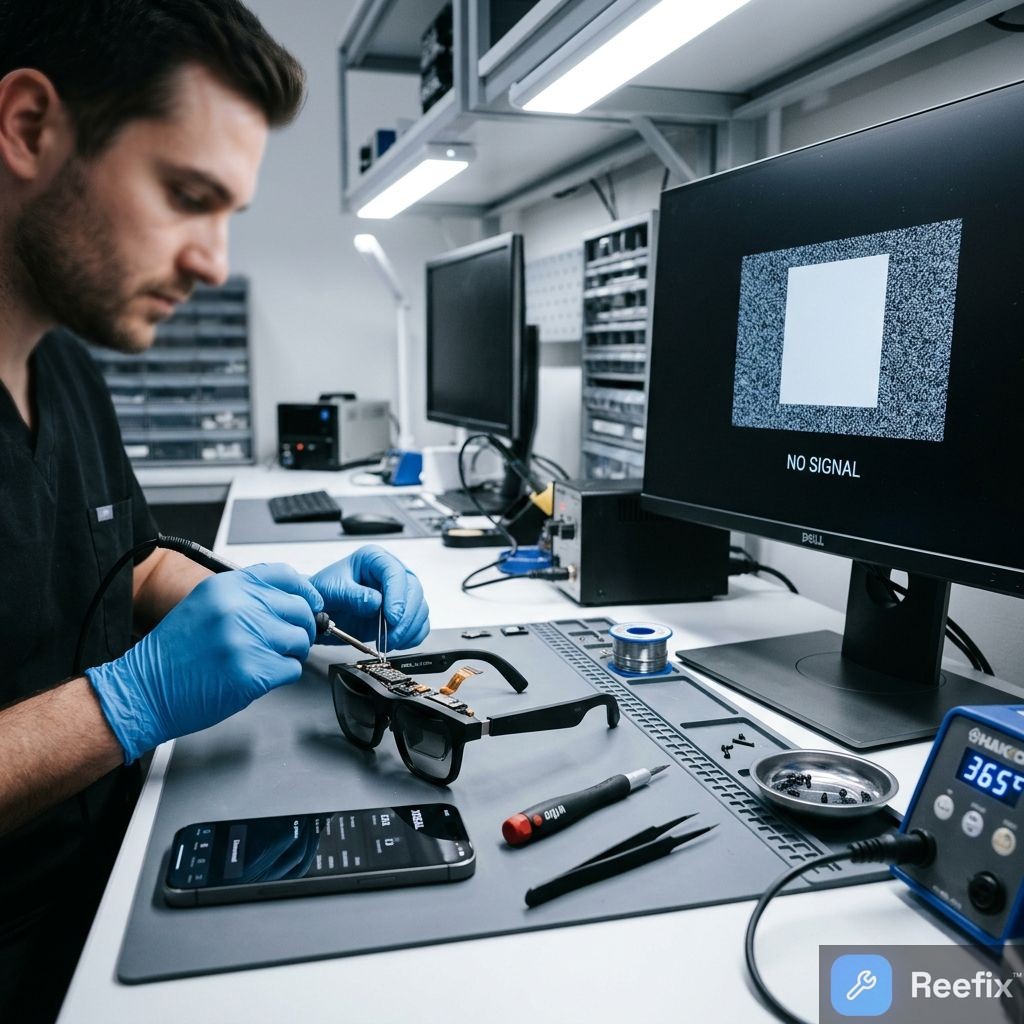
- Action: With good light, inspect the inside of the USB-C port on the left temple of the glasses. Look for bent pins, dirt, oxidation, or visible damage. * Why: The USB-C port is subject to mechanical stress. Even a single bent pin or a micro-fracture in the solder joints can interrupt the handshake and video signal transmission.
- Key Signals: The video signal comes and goes if you gently move the inserted connector. Or, the glasses show no signs of life (not even the LED) and the host device doesn't detect them at all.
- Counter-example: If the glasses are powered (LED on) but show no video, the port might be partially functional (power only, no DP Alt Mode data).
DECISION FORK
Consider the quick test results to make a decision:
-
Repair yourself (Low success probability for hardware failures):
-
If the problem was the cable or source compatibility (Test 1): Purchase a certified Xreal Air 2 Ultra USB-C Cable. This is the most common and self-resolvable case.
-
If the problem was a dirty proximity sensor (Test 2): Cleaning resolves the issue.
-
Costs: Low (20-40€ for a cable, 5-15€ for a cleaning kit).
-
Time: Immediate for cleaning, a few days for cable shipping.
-
Consult a technician (Medium probability, highly recommended for physical failures):
-
If you suspect damage to the USB-C port (Test 3): USB-C port repair requires micro-soldering and specific equipment. It is a complex intervention.
-
If the proximity sensor is internally damaged (after cleaning): This also requires opening the device.
-
If you have tried everything and it doesn't work: There might be firmware corruption (8%) or a logic board failure. A technician might attempt a forced firmware reset or use a professional USB-C Multimeter Tester to monitor current draw and Power Delivery negotiation. They might also test with an Xreal Beam Adapter as a standard source.
-
Costs: Internal hardware repair (port, sensor, board) can range from 80 to 200+ euros. As this is a premium device with a high commercial value (around 700-800 euros), repair is almost always highly cost-effective compared to buying a new pair of glasses.
-
Output for technician: "The Xreal Air 2 Ultra device shows no video signal. Check USB-C port integrity (pins, solder joints), test current draw with a USB-C tester, and check proximity sensor functionality. Attempt firmware reset if basic hardware tests are negative."
-
Replace the device (Low probability, only as a last resort):
-
If the estimated repair by the technician exceeds 50% of the cost of a new device (over 350-400€): Consider replacement. This scenario rarely occurs, mainly in cases of irreparable damage to the main logic board or Micro-OLED displays.
CONFIRMED DIAGNOSIS
The "no signal" problem in Xreal Air 2 Ultra is, in most cases (60-75%), related to an incorrect external configuration: an unsuitable USB-C cable (without DP Alt Mode support) or an incompatible source device. Less frequently (15-25%), the fault is physical damage to the USB-C port, which undergoes mechanical stress and can develop micro-fractures in the solder joints. Finally, an obstructed or faulty proximity sensor (10-15%) or firmware corruption (8%) are less common possibilities.
Operational decision: If testing with a certified cable and source fails and cleaning the sensor does not resolve the issue, repairing the USB-C port or internal components by a technician is the most recommended and cost-effective choice, given the high value of the device. Replacement should only be considered if damage to the motherboard or displays makes restoration uneconomical (exceeding 350-400€).
Why do my Xreal Air 2 Ultra show no signal?
It often depends on an unsuitable USB-C cable (without DP Alt Mode) or a source device not compatible with USB-C video output.
How to check if the signal problem of Xreal Air 2 Ultra is the cable?
Connect the glasses to a surely compatible device using a USB-C cable certified for video transmission (DP Alt Mode).
When is a technician needed for the absence of signal on Xreal Air 2 Ultra?
If changing the cable and source does not work, a technician is needed to check for physical damage to the USB-C port or the proximity sensor.
This diagnostic report is generated using an artificial intelligence system (RAG) based on the aggregation of online data. No publication happens automatically: the rigorous multi-step moderation by Luca Chia (Electronic Expert) validates its logical coherence and technical plausibility regarding the described symptoms, confirming the correctness of the AI's diagnostic reasoning, without however constituting an absolute guarantee of resolution for individual cases.